
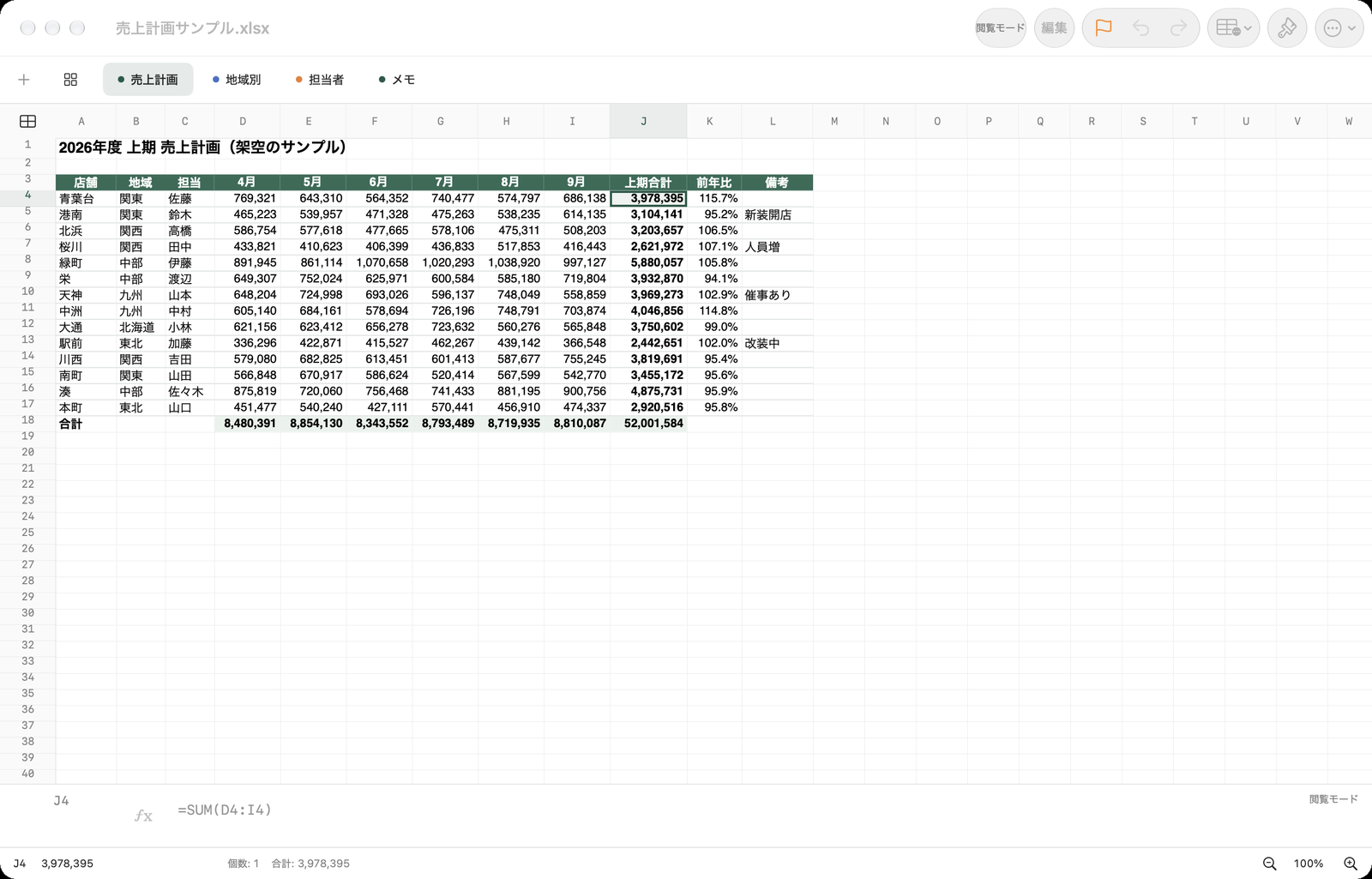
見るときは閲覧モード、直すときだけ編集
既定では読み取り専用の「閲覧モード」で開きます。設定から、すぐに編集を始めるようにも変更できます。
閲覧中も、シートの切り替え、列幅や行の高さの変更、フラグ、拡大・縮小はできます。列幅・行高は一時的な表示で、編集を始めると元に戻ります。フラグと値のフィルターもメモリ上だけの状態です。黄色いタイトルバー/ナビゲーションバーの「編集」で切り替えられます。
View first. Edit only when you mean to.
Workbooks open read-only in Viewing Mode by default. Settings can instead open existing files ready to edit.
While viewing you can still switch sheets, resize columns and rows, flag rows and columns, and zoom. Viewing-only sizes reset when editing starts. Flags and value filters stay in memory and never change the file. Choose Edit in the yellow title or navigation bar to switch modes.
主な機能Features
スクロールも編集もすぐ
表はタイルに分けてメインスレッドの外で描き、スクロール中は描き終えた部分をそのまま動かします。見出しと固定した行・列は表が動いてもその場に留まり、20,000行のシートでも画面の更新に追いつきます。3,000行のシートでも値の入力や書式の変更は約10ミリ秒で終わります。
Instant scrolling and editing
The sheet is drawn in tiles off the main thread that simply move while you scroll, with headers and frozen rows and columns held in place, so even a 20,000-row sheet keeps up with the display. Entering a value or changing a format in a 3,000-row sheet takes about 10 ms.
行と列のフラグ
行や列にオレンジのフラグを付け、ツールバーのフラグのボタンで、フラグを付けた行と列だけに表示を絞れます。見出しの列と離れたデータの列を並べて編集できます。シートのフラグは行・列とは独立して絞り込みます。シートにフラグがなければ、表示設定に従って全シートを表示します。フラグはメモリ上だけで、ファイルには保存しません。
Row and column flags
Flag rows and columns in orange, then use the flag button in the toolbar to show only what you flagged — for example a header column next to a distant data column. Sheet flags filter tabs independently. With no sheet flags, all normally visible sheets remain. Flags stay in memory and are never saved.
シートの管理
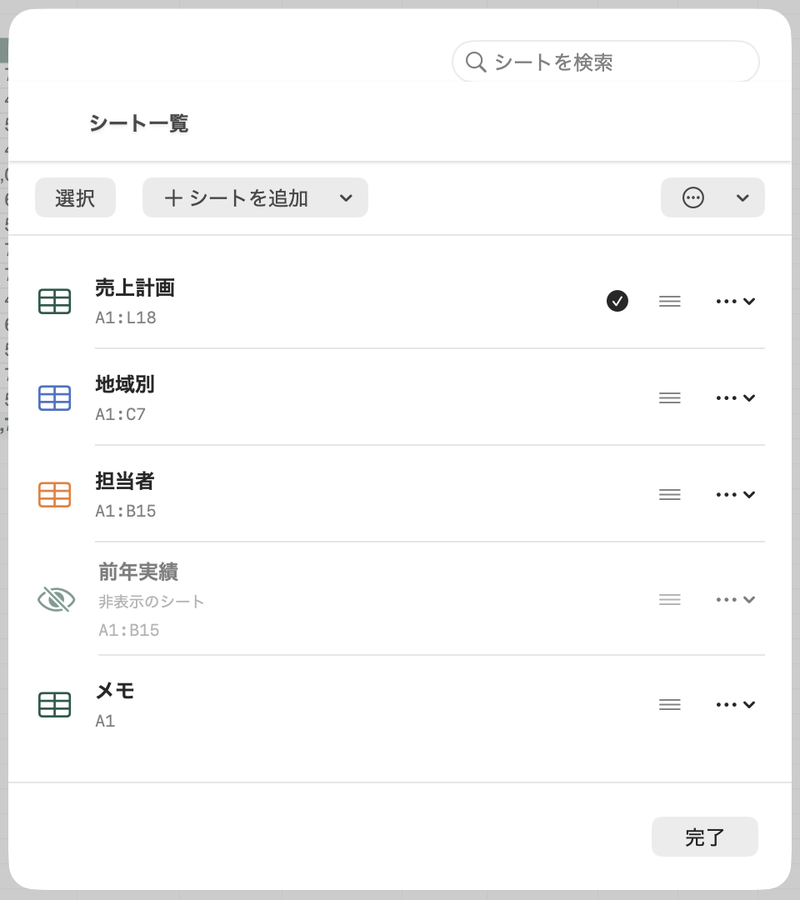
タブの末尾の+でシートを追加できます。「すべてのシート」では非表示のシートも見え、先頭・末尾への追加、名前の変更、複製、色、表示・非表示、移動、削除、複数選択、並び替え、名前順の並び替えができます。
Sheet management
Add a sheet with the + at the end of the tabs. All Sheets shows hidden sheets too, and lets you add at either end, rename, duplicate, color, show or hide, move, delete, multi-select, reorder and sort by name.
値・数式・書式の編集
セルの値と数式、書式、行と列の挿入・削除、列幅、コピーと貼り付け、元に戻す・やり直しに対応します。Flash Sheets文書間の通常の貼り付けは書式を保持し、⌘⌥Vでは表示値のみを貼り付けます。行・列のカットはすぐに削除し、Shift付きの貼り付けは行・列を挿入します。⌥⌘Xの「移動」はExcelの切り取りと同じく、移動したセルへの参照を移動先へ付け替え、行・列は選んだ位置に差し込めます。設定でカットと移動のショートカットを入れ替えられます。末尾の空の列幅情報がExcelの上限まであるファイルでも、列を自然に挿入できます。文字色・セル色・罫線と罫線色はツールバーやクイック書式から変更できます。色はOfficeと同じテーマの色・標準の色のパレットから選べ、その他の色はOS標準の色選択で指定できます。よく使う関数は一覧から入れられます。数式の入力中は、セルをクリックやドラッグすると参照が入り、シートのタブから別のシートのセルも指定できます。
Values, formulas and formatting
Edit values, formulas and formatting; insert and delete rows and columns; resize; copy and paste; undo and redo. Paste between Flash Sheets workbooks keeps formatting; Command-Option-V pastes displayed values only. Cutting rows or columns deletes them immediately; Shift-paste inserts copied axes. Move (Option-Command-X) works like Excel’s cut and paste: references follow the moved cells, and whole rows or columns can be inserted elsewhere. Settings can swap Cut and Move shortcuts. Empty trailing dimension records no longer block column insertion. Text, fill and border controls are available from the toolbar or Quick Format. Pick from the same theme and standard color palette as Office, or choose any other color with the system color picker. Common functions can be inserted from a list. While typing a formula, click or drag across cells to insert references, and choose a sheet tab to point at cells on another sheet.
SVG画像の挿入と編集
SVG画像を元の位置と縦横比のままベクターで表示します。.svgを挿入でき、選択した画像の移動・サイズ変更、使われている色の置き換え、パスのアンカーポイントとコントロールポイントの編集ができます。保存時はExcelと同じくPNGの代替画像も残します。
Insert and edit SVG pictures
SVG pictures appear as sharp vectors at their original position and aspect ratio. Insert .svg files; move and resize a selected picture, replace the colors it uses, and drag its anchor and control points. Saving keeps a PNG fallback, as Excel does.
複数の行・列を選択
Macでは行・列の見出しをドラッグ、iPhone・iPadでは見出しの選択の両端にあるハンドルをドラッグして、複数の行や列をまとめて選べます。
Select several rows or columns
Drag across row or column headers on Mac, or drag the handles at the ends of a header selection on iPhone and iPad.
複数セルへ同じ値を入力
複数のセルを選んで文字を入力すると、選択したすべてのセルに同じ内容を設定できます。
Fill multiple cells at once
Select multiple cells and type once to put the same content into every selected cell.
改行をセル内で折り返す
セルに改行を入力すると、文字は列幅の中で折り返して表示され、隣のセルへはみ出しません。
Wrap text with line breaks
Text with a line break wraps within its column width and does not overflow into neighboring cells.
壊さない保存
保存は元のファイル形式のままです。グラフや図形、マクロなど Flash Sheets が編集しない部分はそのまま残します。安全に変更できない操作は、理由を示して止めます。マクロは実行しません。
Saving that preserves
Files are saved in their original format. Charts, drawings, macros and other parts Flash Sheets does not edit are kept as they were. An edit that cannot be made safely is refused with the reason. Macros never run.
タッチでも速く
iPhone・iPad では、選択中のセルをタップすると操作メニューが開きます。画面下には「コピー」「ペースト」「移動」「フラグ」が並び、上部にはフラグ絞り込みと値のフィルターを常に表示します。同じセルをすばやく2回タップすると編集に入ります。ピンチで拡大・縮小すると倍率を画面に表示し、100% で止まります。値と数式の欄は表の下にあります。
Fast on touch, too
On iPhone and iPad, tap the selected cell to open its action menu. The bottom toolbar begins Copy, Paste, Move and Flag. The top toolbar always shows flag focus and value filters. Quickly tap the same cell twice to edit it. Pinch zoom shows the percentage and snaps to 100%; the value and formula bar sits below the grid.
対応形式と動作環境Formats and requirements
| 項目Item | 内容Details |
|---|---|
| 開ける形式Formats | .xlsx・.xlsm(マクロは実行しません)、.csv(UTF-8。BOMの有無はどちらでも可。すべての項目を記載どおりの文字列として開き、Excelと同じように編集できます。CSVに保存できる内容ならCSVのまま保存し、書式やシートの追加など保存できない変更はExcelブックとして保存するかを確認します)。.xls・.xlsb・パスワード付きのブックは開けません。.xlsx and .xlsm (macros never run), and .csv (UTF-8, with or without a byte order mark; every field opens as text exactly as written and can be edited as in Excel. It saves back as CSV while CSV can hold it; a change CSV cannot keep, such as formatting or another sheet, offers to save an Excel workbook). .xls, .xlsb and password-protected workbooks are not supported. |
| Mac | macOS 27 以降(Apple シリコン)macOS 27 or later (Apple silicon) |
| iPhone・iPad | iOS 27・iPadOS 27 以降iOS 27 or iPadOS 27 or later |
| 言語Languages | 日本語・英語English and Japanese |
ベータ版です。大切なブックは、編集する前に複製を残してください。Excel と同じ見た目・同じ計算結果になることは保証しません。
This is a beta. Keep a copy of important workbooks before editing. Matching Excel's appearance and calculation results exactly is not guaranteed.
ベータ版の入手Get the beta
Mac版はこのページから DMG をダウンロードできます。DMG を開き、Flash Sheets を「アプリケーション」フォルダーへドラッグしてください。Apple の公証を受けているため、そのまま起動できます。自動更新はありません。新しい版はこのページに掲載します。
Mac版のDMGをダウンロード(v0.12.0・4.9 MB)
iPhone・iPad版は TestFlight でベータテスト中です(招待制)。App Store での公開は準備中です。
Mac: download the DMG from this page, open it and drag Flash Sheets to the Applications folder. It is notarized by Apple, so it opens normally. There are no automatic updates; new versions are posted on this page.
Download the Mac DMG (v0.12.0, 4.9 MB)
iPhone and iPad: in beta testing through TestFlight (by invitation). An App Store release is in preparation.
SHA-256: 094843bd632bc0e195c3a222e866255e6eaa14e01787e31377c49b92cbe212f5